
- Log into the Billing Area
Select “Profile” from the “Account & Panels” dropdown
This is located on the upper right of the page next to the navbar, after logging into the Billing Area.
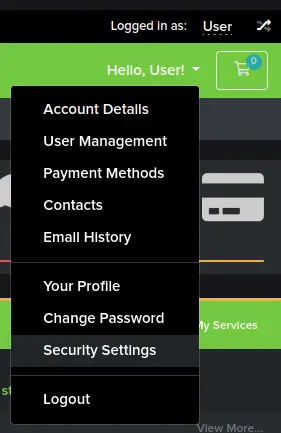
Open the “Security Settings”.
This is located on the left side of the “Your Profile” page.
- Click the green “Click here to Enable” button.
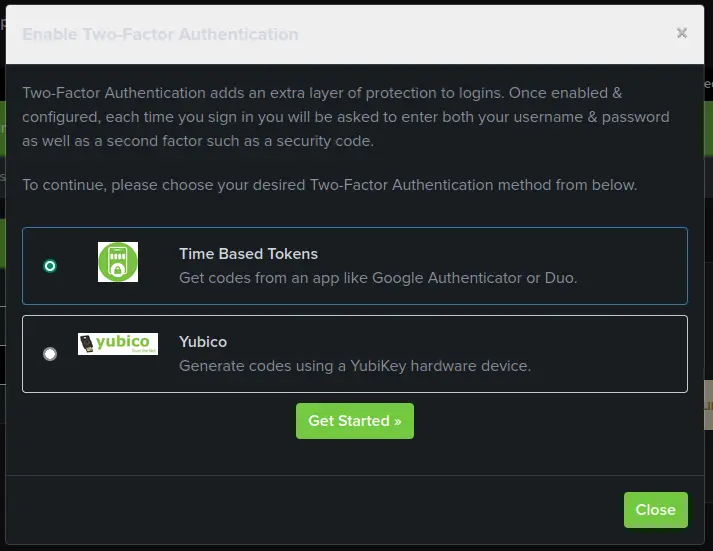
Select “Time Based Tokens” and click “Get Started”.
You’ll be presented with two options, “Time Based Tokens”, which is what we’ve covered so far, and “Yubikey, which is an entirely different kind of 2FA that requires a specialized device.
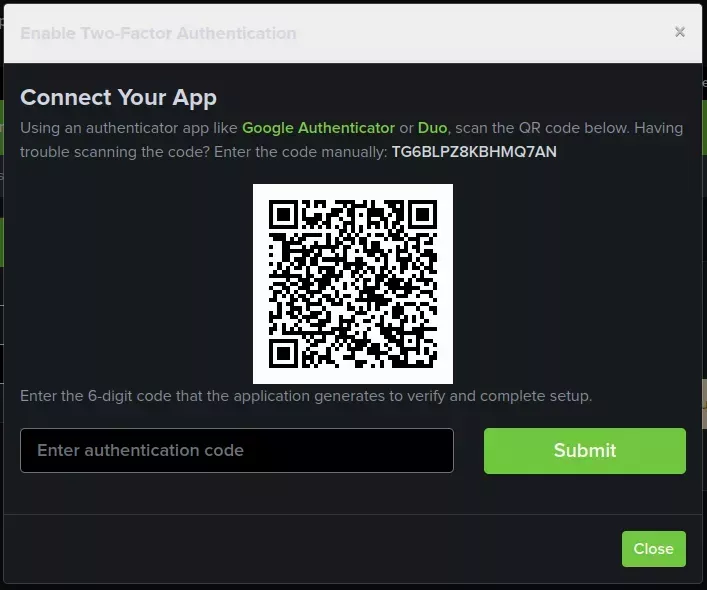
Scan the QR code with your authenticator app or enter the code directly.
You can scan the QR code using an app like Google Authenticator or Authy or you can enter the code manually into either of the two apps.
More in Accounting & Billing
How to Cancel Your Service
We're sorry to see you go, but this is how you can cancel your HostVenom service!
PayPal Payments
How PayPal Billing Agreements interact with your HostVenom service.
Upgrade or Downgrade Your VPS
How to upgrade or downgrade your HostVenom VPS by switching packages or changing your RAM, CPU, and storage limits.
Frequently Asked Questions
Log in to the Billing Area, select Profile from the Account & Panels dropdown in the upper right, then open Security Settings on the left side of the Your Profile page. Click the green Click here to Enable button.
Two options are offered. Time Based Tokens work with a standard authenticator app, and Yubikey is a different kind of 2FA that requires a specialized hardware device.
Apps such as Google Authenticator or Authy work fine. You can either scan the QR code shown in the Connect your app modal or type the alphanumeric code into the app manually.
Keep it in a private password manager or on an encrypted flash drive as a secure backup. If you have saved that code, switching to a different authenticator app later is straightforward.