
We’re sorry to see you go. If there is anything our team can do to keep you as an active client please let us know, we will do our best to work with you on any issues! Remember we are available via Support Tickets and Discord!
To cancel your services with HostVenom you will need to:
- Log in to the Billing Area.
Click on the “Services” button on the navigation bar.

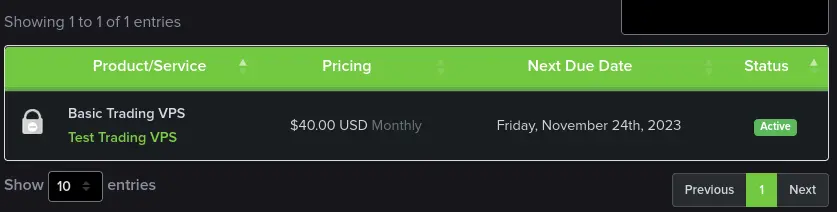
Select the Service you wish to cancel.
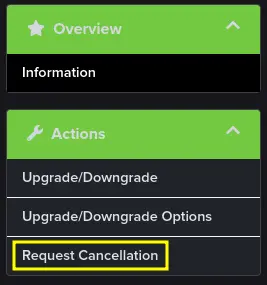
Select “Request Cancellation” from the “Actions” tab.
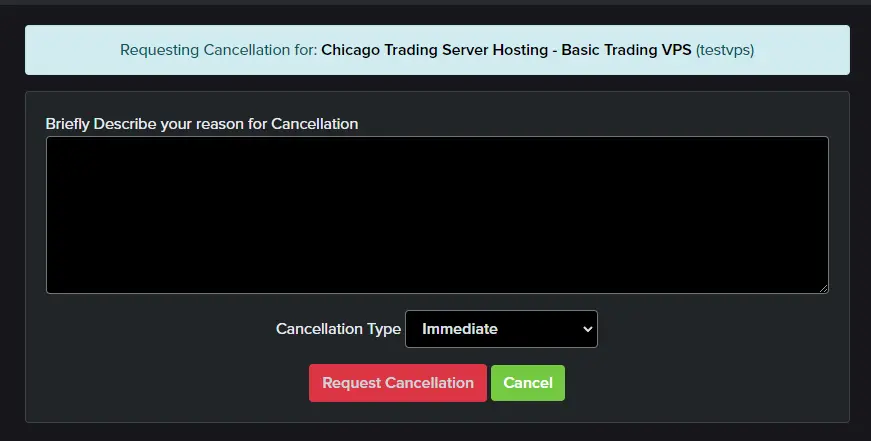
Provide a reason for the cancellation and confirm your request.
Once you’ve clicked on the Request Cancellation button, you’ll see the following message. Your cancellation request will be fulfilled at the end of your Billing Cycle, depending on when our automatic processing begins. You’ll receive an email titled HostVenom Cancellation Request Confirmation, providing details on when your service will be cancelled and any further steps that may be required.

How I do cancel my PayPal Subscription or Billing Agreement?
Here’s how:
- Log in to your PayPal account.
- Click “Profile” (the gear icon) on the top right corner of the page.
- Click “Pre-approved payments” under “Payment settings”.
- Select the merchant whose agreement you want to cancel, and click “Cancel”.
- Follow the instructions to cancel the agreement.
If you don’t have a PayPal account, you should contact us directly to cancel the agreement. You can find PayPal’s article on canceling a reoccurring payment agreement here.
More in Accounting & Billing
Billing Account 2FA
What is 2FA and how do you enable it for your HostVenom Billing account?
PayPal Payments
How PayPal Billing Agreements interact with your HostVenom service.
Upgrade or Downgrade Your VPS
How to upgrade or downgrade your HostVenom VPS by switching packages or changing your RAM, CPU, and storage limits.
Frequently Asked Questions
Log in to the Billing Area, click Services on the navigation bar, select the service you want to cancel, then choose Request Cancellation from the Actions tab. You will be asked for a reason before you confirm the request.
Your cancellation request is fulfilled at the end of your billing cycle, depending on when our automatic processing begins. You will receive an email titled HostVenom Cancellation Request Confirmation with the exact date and any further steps.
Yes. If you paid via PayPal and have an active PayPal subscription, cancel it in PayPal under Profile, then Pre-approved payments. Failing to cancel it means future payments are still sent and land on your account as credit.
Contact HostVenom directly and our team will cancel the agreement for you. You can reach us through a support ticket or Discord.