
HostVenom VPS services can be upgraded and downgraded* by either changing the package as a whole or by changing the individual resource limits you’d like to adjust.
Upgrade
You have two options for upgrading your VPS, you can either upgrade to one of the listed Packages or you upgrade the CPU Cores, RAM/Memory, and Disk Space individually.
In either case, you’ll need to start by logging into the Billing Area and clicking on the “Manage Service” button on the service you’d like to upgrade from the “Your Active Products/Services” list on the home page. You can also find your services listed under the “Services” -> “My Services” tab in the navbar. Clicking on the service in the list will bring you to it’s “Product Details” page, allowing you to select on of the following two upgrade options.
Video tutorial
Package
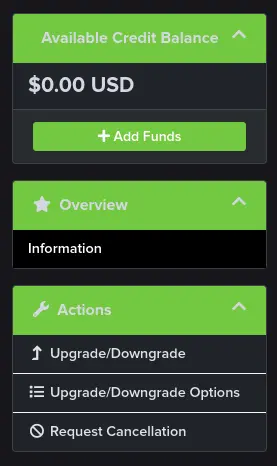
If you just want to upgrade to a different package, you can select the “Upgrade/Downgrade” option from the “Actions” pane on the left side of the page. This will give you a list of the available packages, their resource limits, and dropdowns for the different payment periods you can choose from.
Options
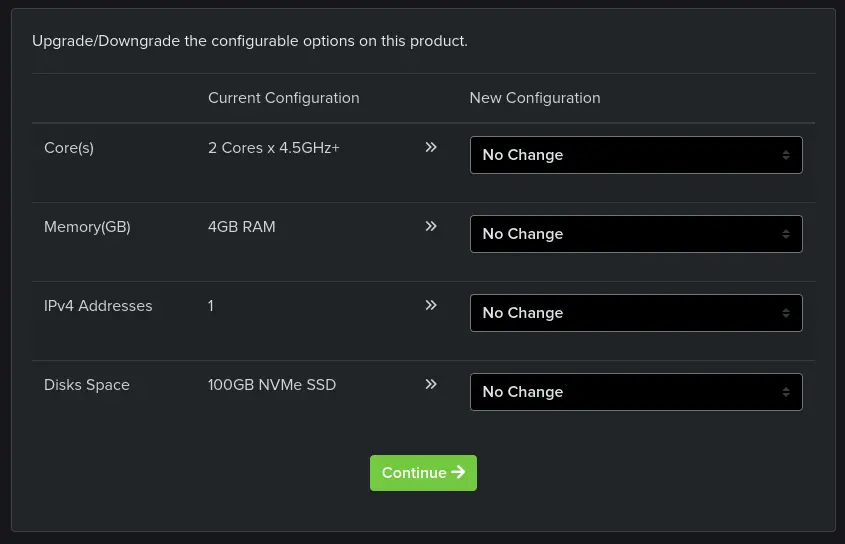
If you’re looking for specific adjustments to your VPS service’s limits, you can select the “Upgrade/Downgrade Options” button and you’ll be given a list that looks similar to the one below with dropdowns for “Core(s)”, “Memory”, “IPv4 Addresses”, and “Disks Space”.
Each option defaults to “No Change”, but you can select one of the listed values which shows the new value and it’s adjusted price for your payment period.
More in Accounting & Billing
Frequently Asked Questions
Power Off and then Power On your server. The Reboot function will not apply the changes. If the upgrade still has not applied after a full power cycle, open a support ticket.
Upgrade/Downgrade moves your service to one of the listed packages, showing each package's resource limits and payment period dropdowns. Upgrade/Downgrade Options lets you adjust Core(s), Memory, IPv4 Addresses, and Disk Space individually, with each field defaulting to No Change.
No. Downgrades for services activated after May 1st 2024 are processed manually, so open a billing ticket to request one. Services activated before May 1st 2024 cannot be downgraded, and you would need to manually migrate your data.
Yes. Open a support ticket so our team can resize your VM disk. Storage cannot be downgraded once the upgrade has been processed.