
Chrome Remote Desktop can be used as an alternative or backup method to connect to your server. Your primary methods should generally be RDP for Windows servers or SSH for Linux servers, but Chrome Remote Desktop can be a good thing to have set up as a backup or for mobile connections.
Windows Server
Setup
You’ll need to install and setup Chrome Remote Desktop before you can connect remotely, so you’ll need to log in to your Windows Server via to do the initial setup.
Once you’ve logged in to your server, you’ll need to navigate to the Chrome Remote Desktop landing page using your web browser and log in to your google account. After logging in your browser should look similar to the image below.
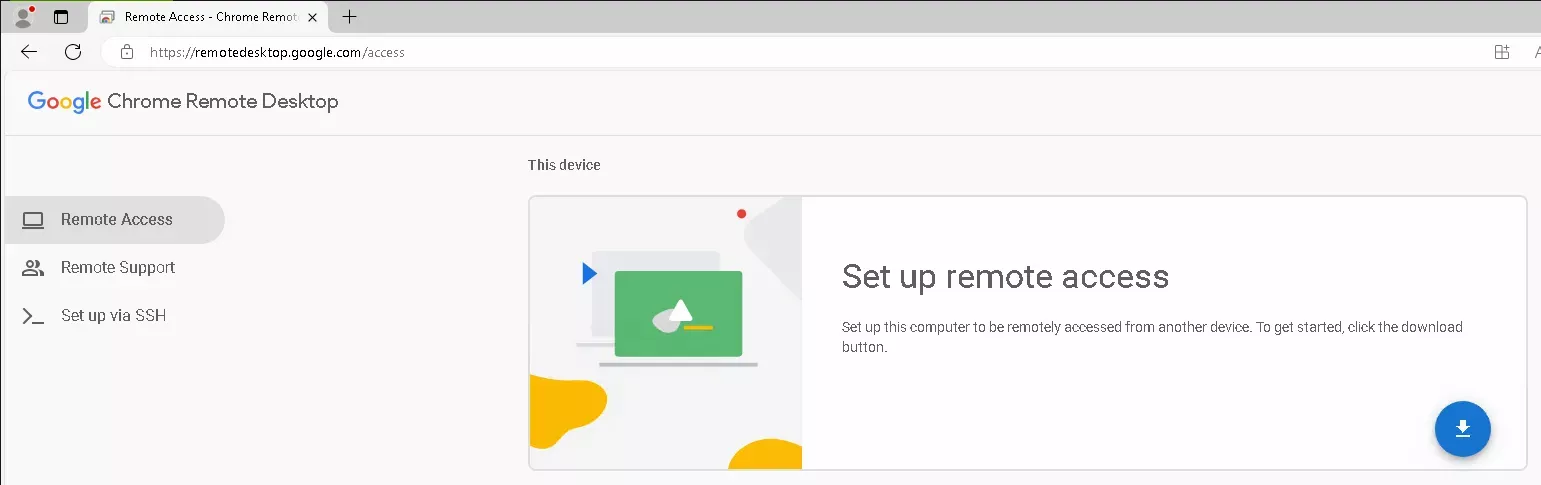
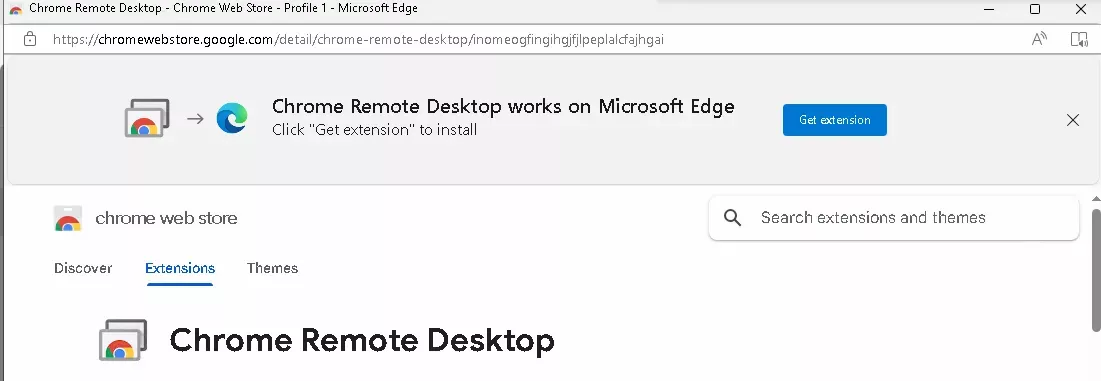
Now that you’re logged in, you’ll need to click on the download icon on the bottom right of the “Set up remote access” card, shown in the picture above. That should open a new browser window that has the Chrome Remote Desktop extension/addon on your browser’s store. The image to the right show’s what this looks like on Microsoft Edge.
With the extension installed the “Set up remote desktop” card should have a “Turn On” button instead of a download button, looking similar to the image below. You may have to refresh the page after installing the browser extension.
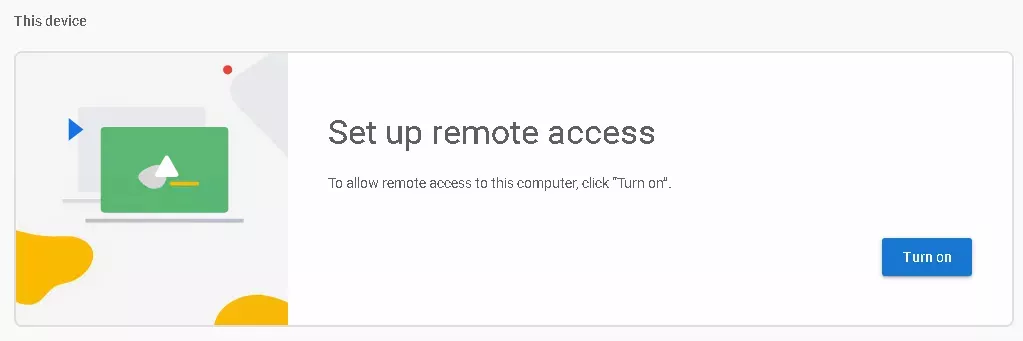
After clicking “Turn on” you’ll be prompted to enter a name to display for your server in the list of available connections and a pin using at least 6 digits that you’ll need when connecting to the server via Chrome Remote Desktop.
Connecting
When you’re done completing the steps in the Setup section, you’re ready to connect to your server remotely from another device. For Desktop devices, this is as simple as navigating to the Chrome Remote Desktop Access Page using your browser, logging in, and clicking on your device in the list. For Android/iOS, you’ll need to download one of the available native apps linked below.
Linux Server
Setup
You can use Chrome Remote Desktop to connect to your Debian based Linux server even if you just use SSH normally. A basic Windowing System will be initiated to display a terminal when you connect, allowing you to interact with your server over networks that may not allow for SSH connections or as a backup if your SSH connection to your server has been blocked.
Headless
To start, you’ll need to navigate to the Setup via SSH or “Headless” section of the Chrome Remote Desktop page on the device you’ll be sending the commands from, not your server. You should see a card titled “Set up another computer” similar to the image to the right.
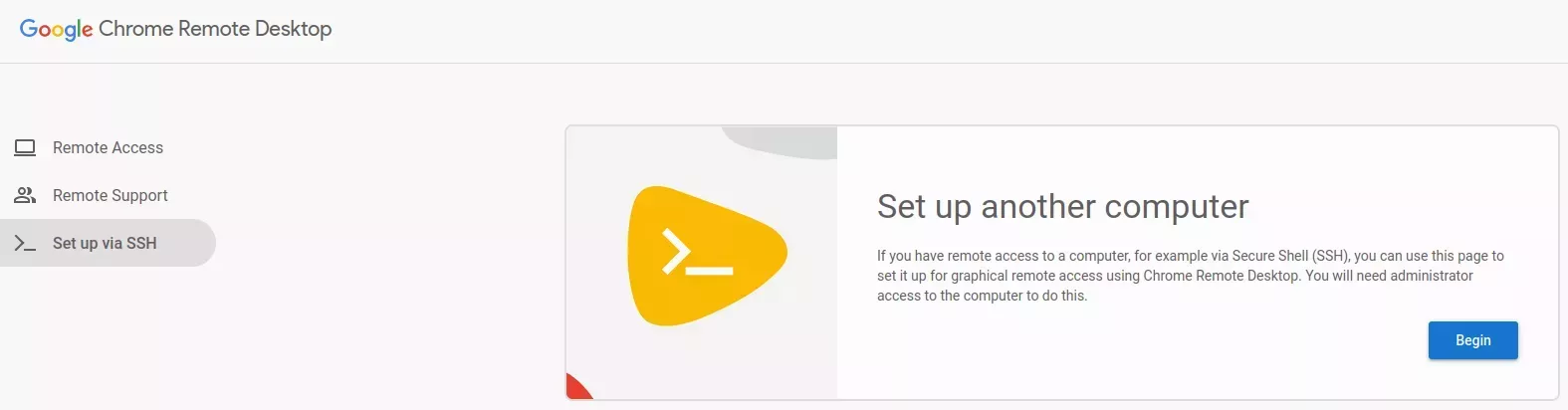
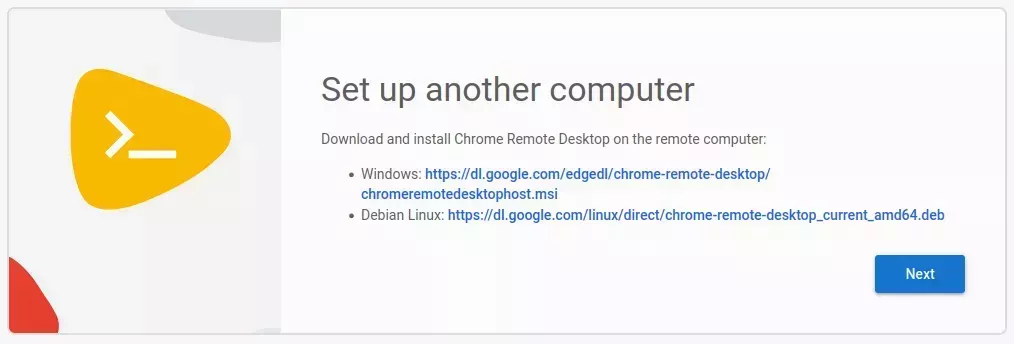
When you click the “Begin” button, you’ll be provided a couple of download links. Assuming your server is running Linux, and specifically a flavor of Debian/Ubuntu, you’ll want to use the link labeled “Debian Linux”. It needs to be downloaded and installed on the server you’re connecting to. On Linux you normally download files using the curl command using the following syntax:
curl -O <DownloadURL>You’ll need to run the curl command on your server’s terminal over , then after it’s downloaded you’ll need to run the installer by first granting execution permissions using chmod +x <FilePath> then running the apt install <FilePath> command. The commands should be similar to the ones provided below:
sudo curl -O https://dl.google.com/linux/direct/chrome-remote-desktop_current_amd64.deb
sudo chmod +x ./chrome-remote-desktop_current_amd64.deb
sudo apt install ./chrome-remote-desktop_current_amd64.deb
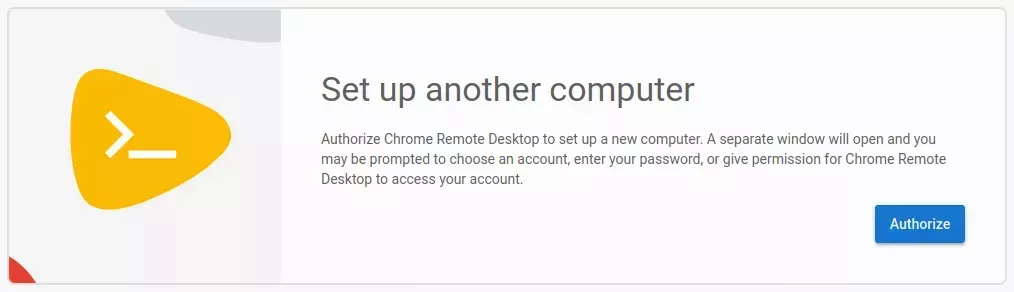
After the install has completed on your server, you’ll need to click the “Next” button under the download links. You’ll now be shown a card with an “Authorize” button in the bottom right, and after clicking “Authorize” you’ll be given 3 command options for different platforms.
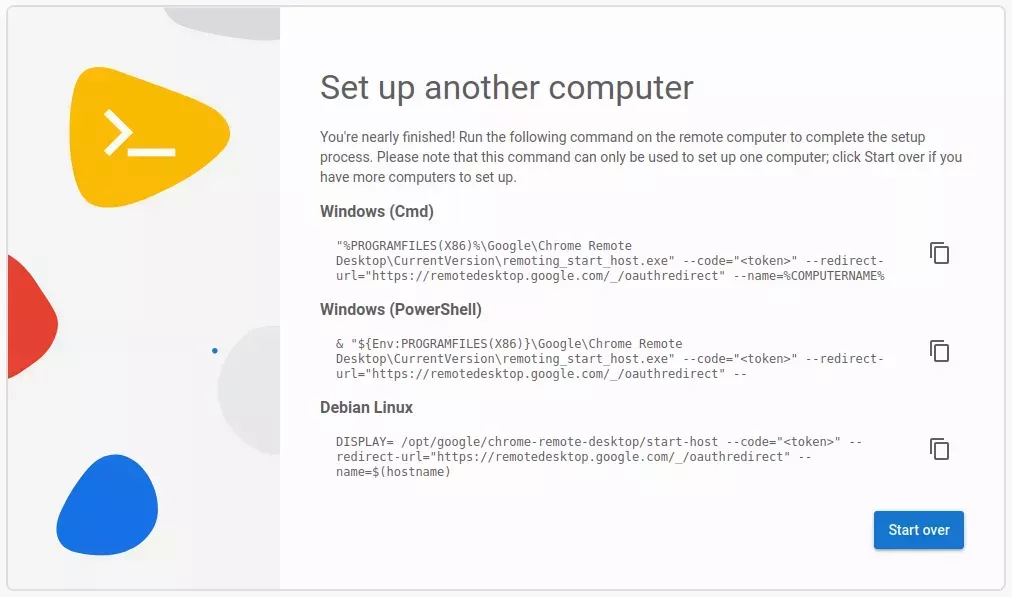
Since your server is running Linux, you’ll need to copy the command in the “Debian Linux” section and run it in your server’s terminal over .
Connecting
When you’re done completing the steps in the Setup section, you’re ready to connect to your server remotely from another device. For Desktop devices, this is as simple as navigating to the Chrome Remote Desktop Access Page using your browser, logging in, and clicking on your device in the list. For Android/iOS, you’ll need to download one of the available native apps linked below.
For your initial connection, you’ll be asked to select a “session” to launch. The default is recommended if you don’t know what you’re doing.
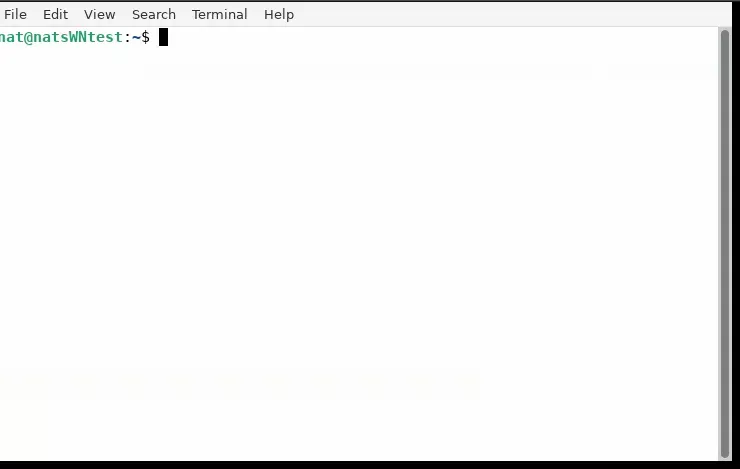
Once you’re connected, you’ll be shown a screen similar to the one on the right, which contains a terminal through which you can interact with your server.
More in Server Management
Managing Your Server via the Billing Portal
How to manage your VPS, Colocated, and Dedicated servers through the HostVenom Billing Portal. Covers power control, reinstallation, IP assignments, rDNS, and traffic graphs.
Logging In to the Server Control Panel
How to log into the HostVenom Server Control Panel using SSO or credentials, reset your password, and find your username.
NoVNC
How to log in to and use NoVNC to control your HostVenom Windows/Linux server from your browser.
Reverse DNS (rDNS)
How to correctly configure rDNS for your server and domain on the HostVenom Server Control Panel or Billing Area.
Frequently Asked Questions
No, it does not work as root by default. Create a user with sudo privileges to install the program and run the authorization command. That is also the user you connect as when opening a remote session.
A Debian or Ubuntu based distro, an active session to the server, a non-root user with a home directory and sudo privileges, and a separate device that can open the Chrome Remote Desktop website and send commands to your server.
Android has a native app on Google Play. On iPad and iPhone, use the Chrome Remote Desktop Access Page at remotedesktop.google.com/access. Sign in and pick your device from the list.
A basic windowing system starts and displays a terminal you can use to interact with your server. On your first connection you are asked to pick a session, and the default is recommended.