
You may run into the following error when connecting to a Windows server over RDP:
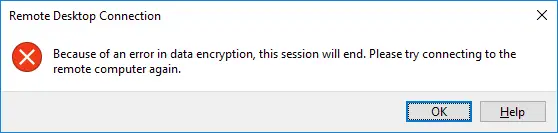
Because of an error in data encryption, this session will end. Please try connecting to the remote computer again.This indicates an error between you and the server, specifically in the encryption of data over the network. Your Windows server stays online after this error, but you’ll need to reconnect. If the error repeats itself, you should try the following solution on your Windows server.
- Click the network icon in the system tray — the Wi-Fi or Ethernet glyph at the right end of the taskbar, next to the clock.
- Click “Network and Internet Settings”.
- Select the “Change adapter options” under the “Advanced network settings” header.
- Select on the “Ethernet” entry and then click on the “Change settings of this connection” option on the far right of the ribbon at the top of the window.
- Click on the “Configure…” button on the upper left side of the “Ethernet Properties” window that appears.
- Select the “Advanced” tab in the ”[…] Ethernet Adapter Properties” window.
- Select and set the “Large Send Offload V2 [IPv4]” option to
false.
More in Windows Servers
Enabling Remote Sound
How to enable and debug remote sound for your HostVenom Windows VPS over the Windows Remote Desktop client.
Getting Started with Your Windows Server
The first steps to take with your Windows Server at HostVenom.
Multiple Monitors with RDP
Configure your Windows Remote Desktop session to use two or more of your physical monitors instead of just one.
Windows Remote Desktop
Using the Remote Desktop Connection application to access your Windows Server.
Frequently Asked Questions
No. Your Windows server stays online after this error, you just need to reconnect to it.
On your Windows server, open the Ethernet adapter's Configure... window, select the Advanced tab, and set the Large Send Offload V2 [IPv4] option to false.
Click the network icon in the system tray, click Network and Internet Settings, select Change adapter options under Advanced network settings, select the Ethernet entry, then click Change settings of this connection.