
The Windows Server operating system is most often accessed and managed through a protocol called RDP, or Remote Desktop Protocol. This provides you with a graphical interface of your Windows Server that looks and acts just like a standard Windows OS, like the one you have on your Home PC.
We’re covering connecting from a Windows PC, but Microsoft also has official RDP Clients for operating systems other than Windows. We’ll be adding them to this article soon™! For information on where to get and how to use the other clients on your operating system, check out these links.
Video tutorial
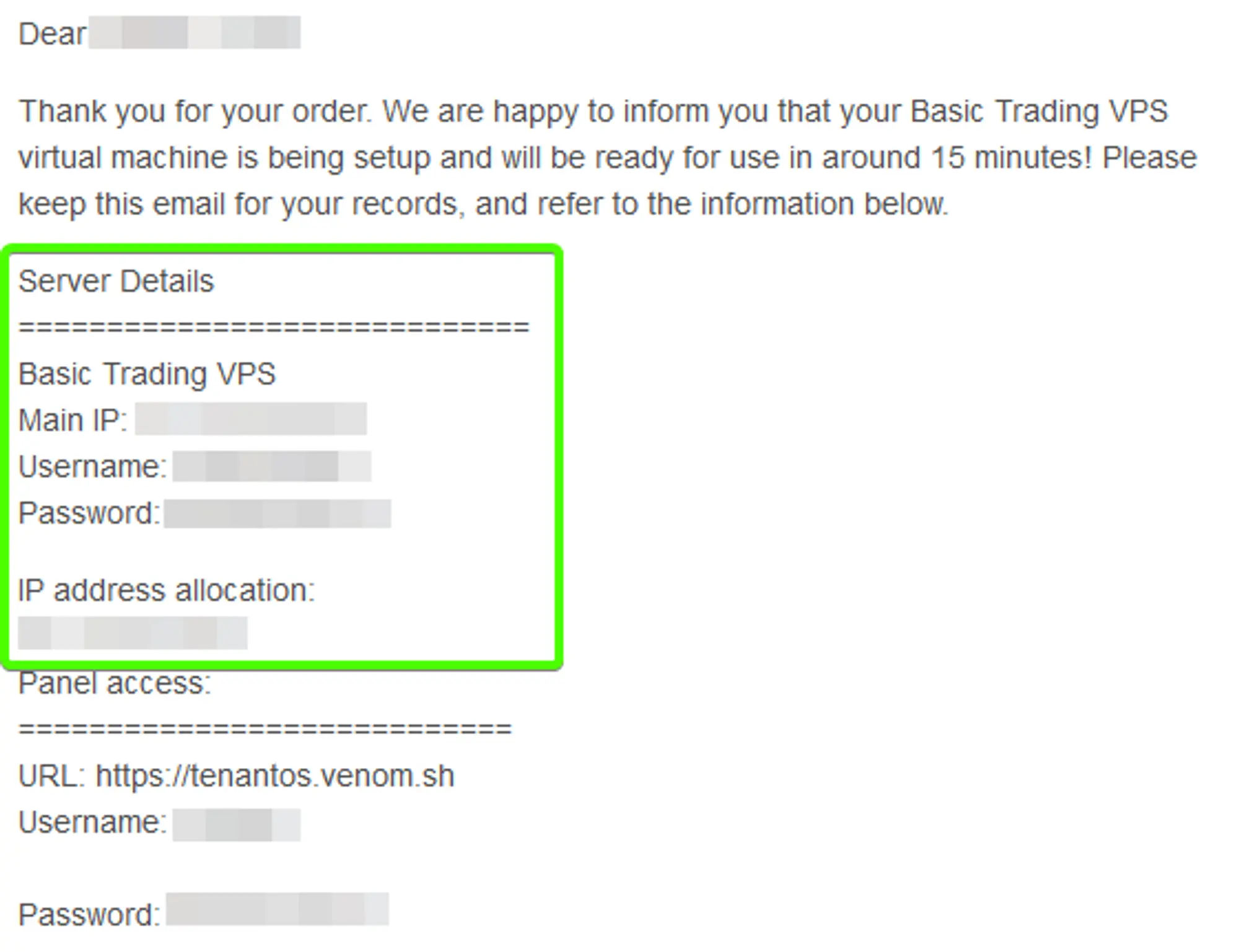
Locate your Credentials in you welcome email.
The credentials and IPv4 address for your server are provided in the “Server Details” section of the VPS Welcome Email that was sent to the address you signed up with, shown in the image to the right.
Open the Remote Desktop Connection application.
You can do this by opening the start menu on your Home PC and typing “Remote Desktop Connection” into the start menu. If you have a search bar directly in your taskbar, that can be used as well.
As you start to type the name of the program into the Start Menu, you should see the program appear in the results in a similar way to the image on the right. You can then either click on the entry in the list, press enter to launch the currently selected item, or press the
Openbutton on the right side of the start menu.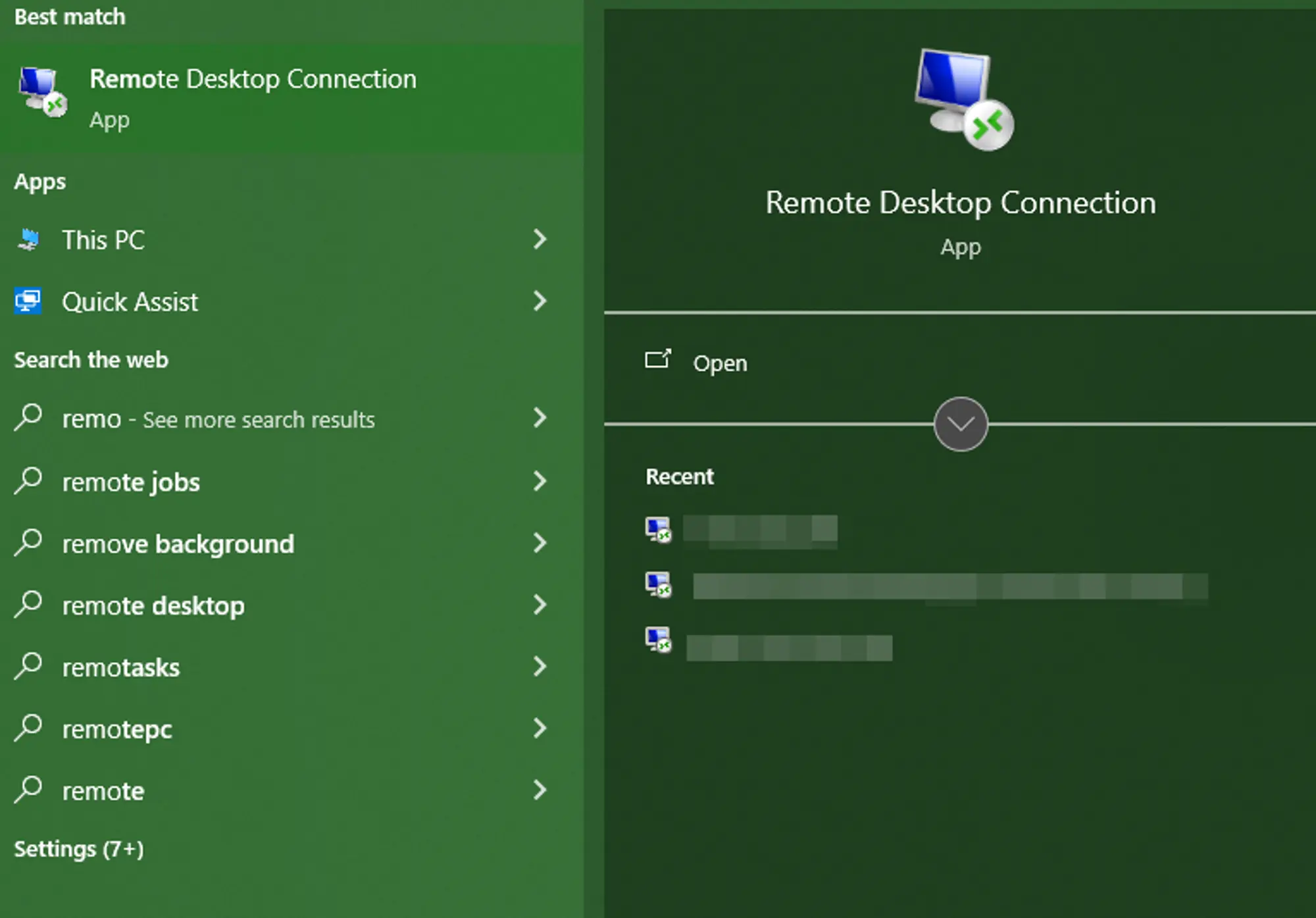
Enter your server’s IP address from the VPS Welcome Email.
You should see a window that looks similar to the image shown on the right, with an empty computer address and a “none specified” username. Enter the IPv4 address contained within the VPS Welcome Email you received from HostVenom into the
computerfield and clickConnect.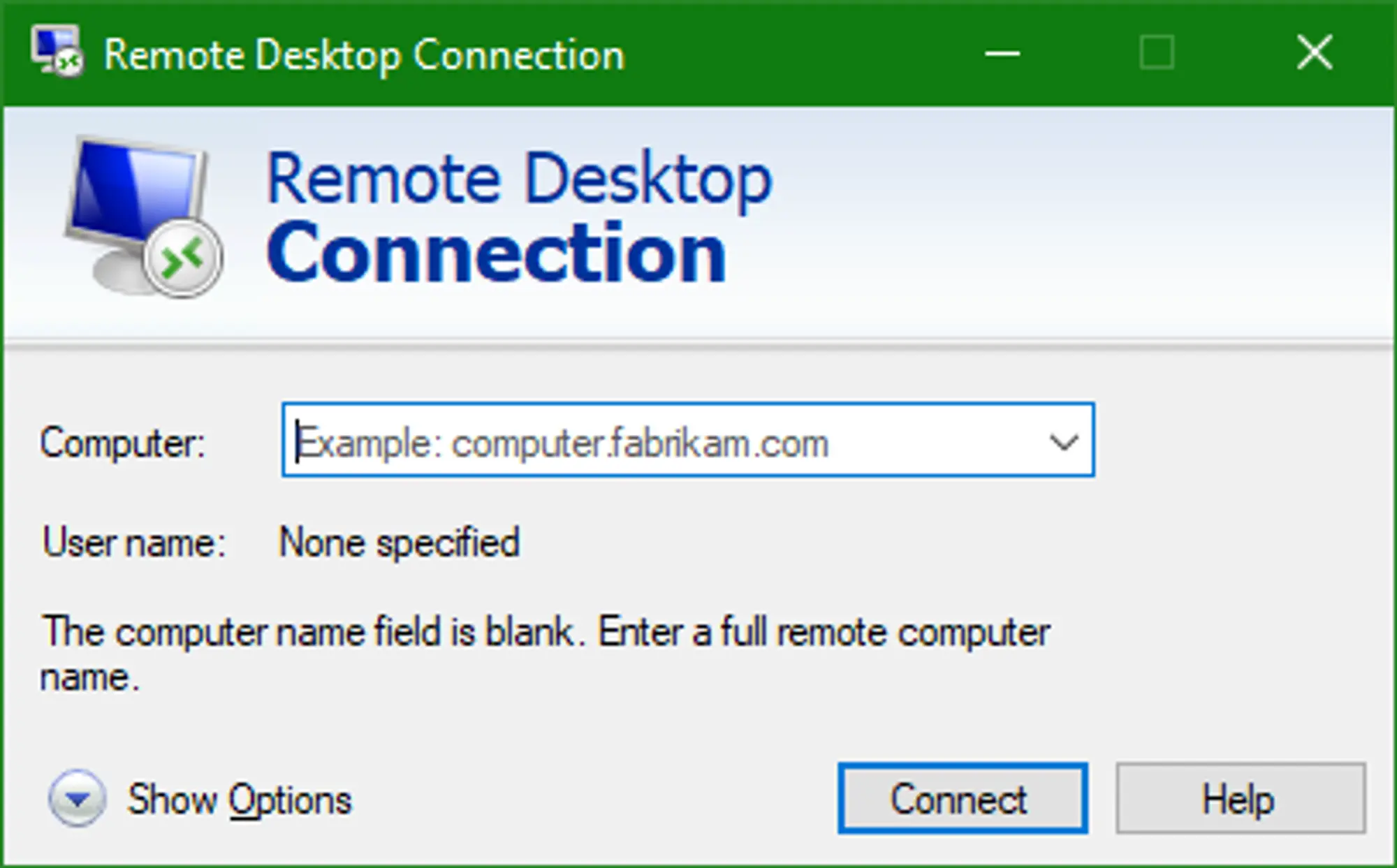
- Click “Connect”.
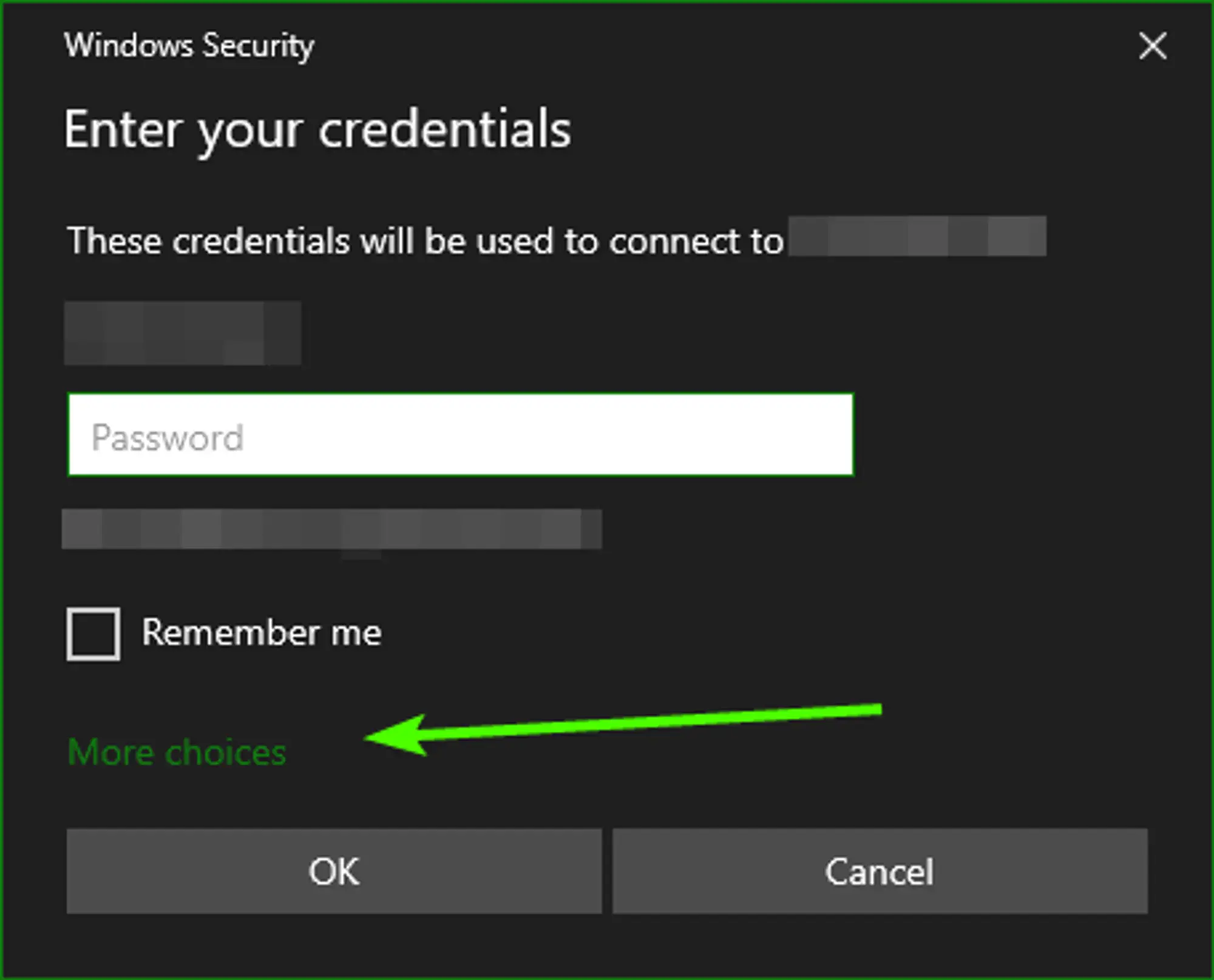
- Click the “More Choices” button then select “Use a different account”.
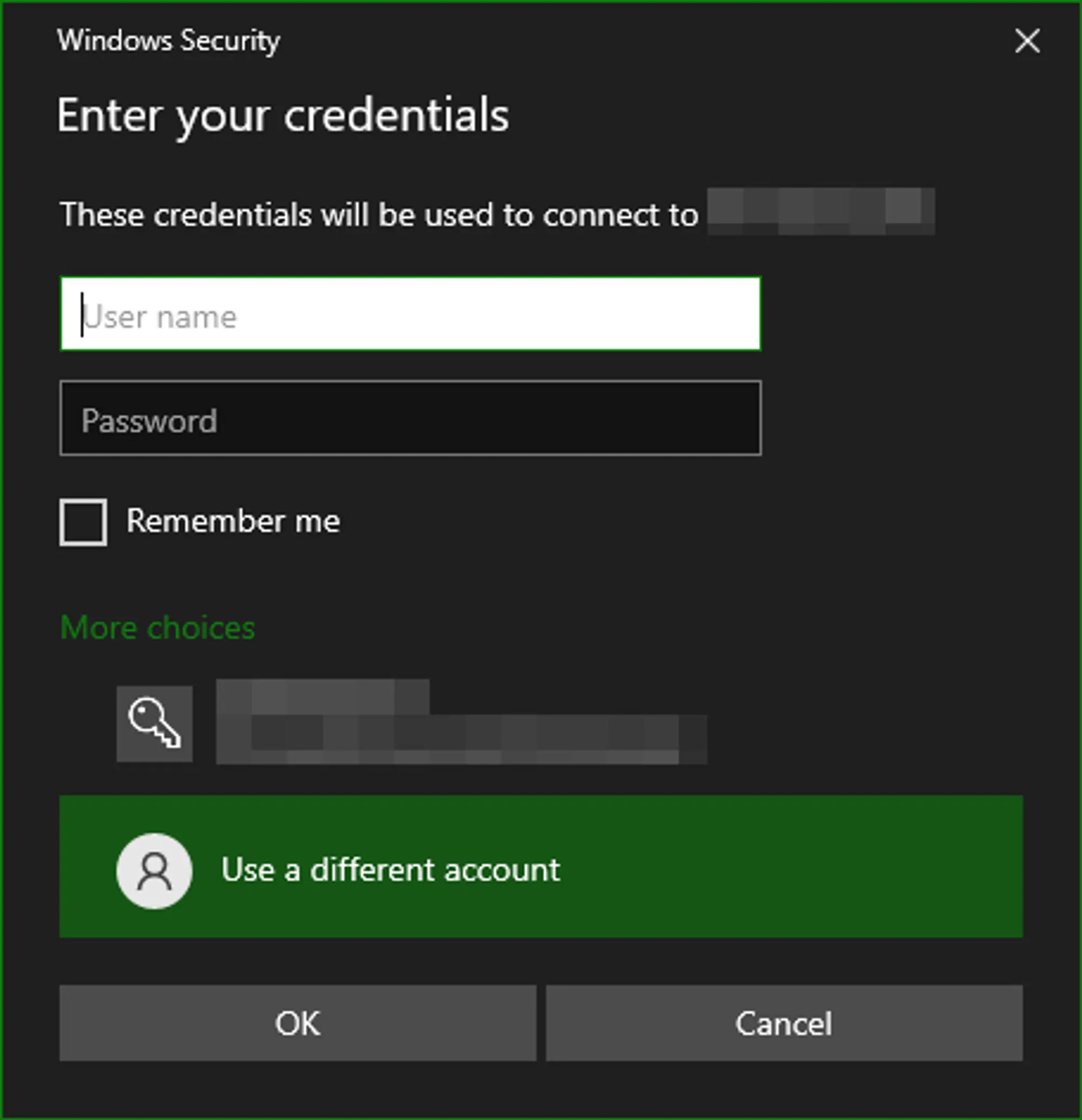
Enter the login credentials from the VPS Welcome Email.
You should be able to enter both a username and password instead of just a password after selecting “More Choices” -> “Use a different account”. You’ll need to enter the username and password provided by the VPS Welcome email you received from HostVenom.
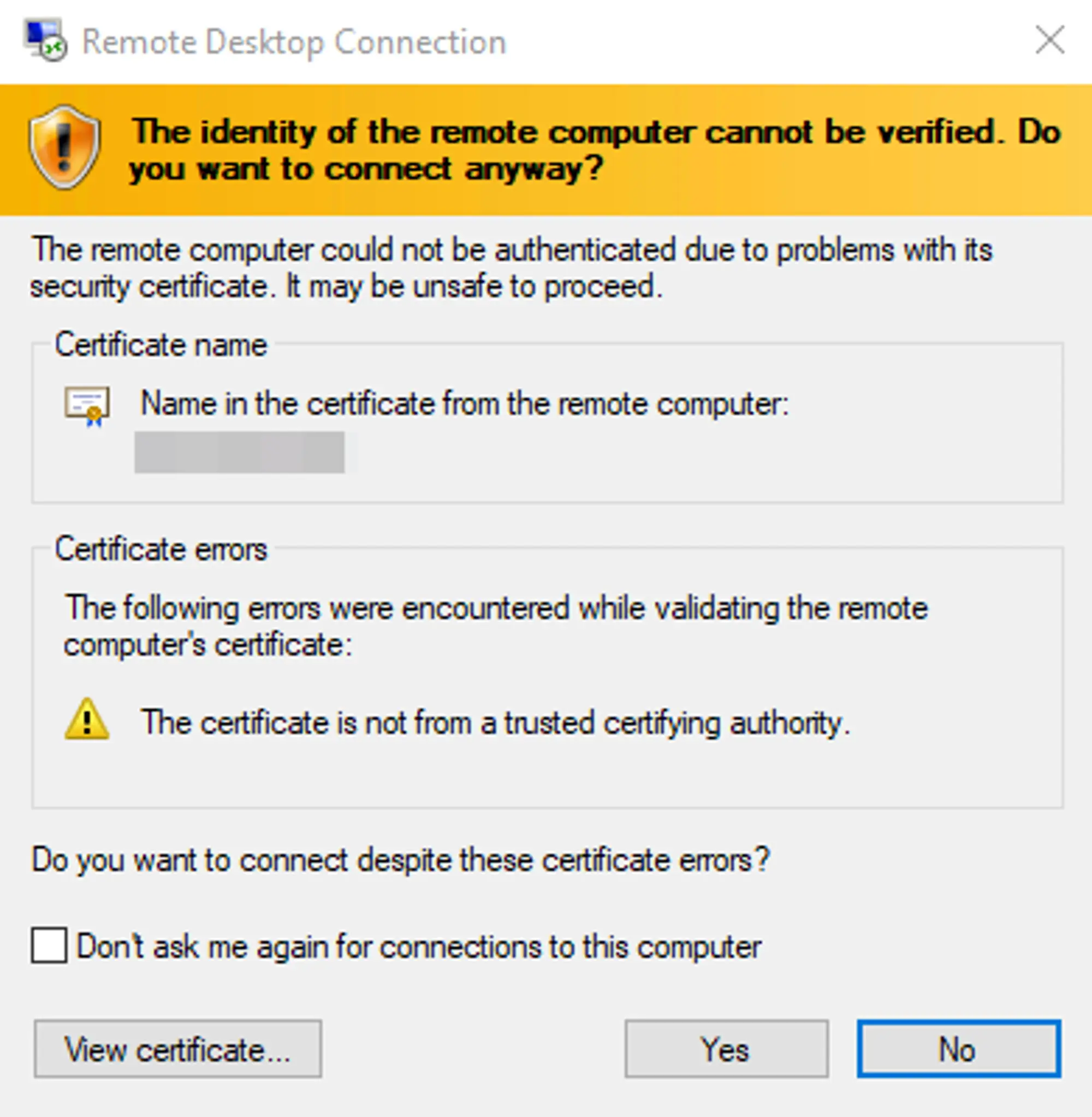
Click “yes” to confirm that you want to trust the certificate provided by the server.
You’ll get a warning during your first connection to your Windows 2019/2022 server saying that the remote computer could not be identified. This is normal for the first connection and has to do with the certificate used to prove that the server is the server you’re wanting to connect to.
Since you haven’t connected to the server in the past, and the server’s certificate isn’t registered with a 3rd party, your computer is relying on you to say that you want to trust this connection. The only time you should be worried about this warning is when it shows up when you are connecting to a Windows 2019/2022 server you’ve connected to before.
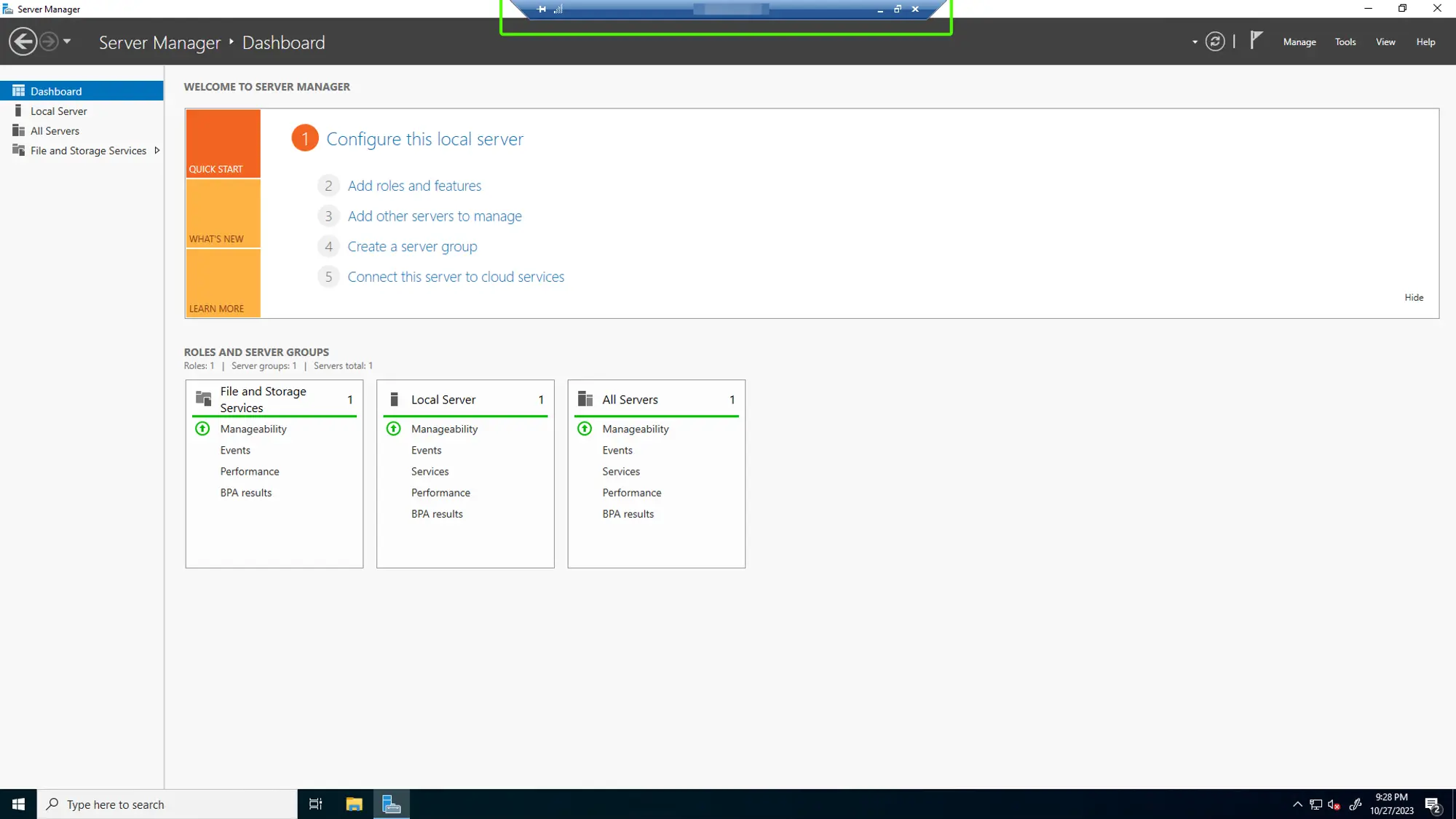
Close the Server Manager to access your Windows Server Desktop.
On the first connection and after a restart, HostVenom VPSs will have the Windows Server Manager open, which is used to interact with and configure your server remotely. You can close this application using the close button in the top right corner, just like on your Home PC running Windows.
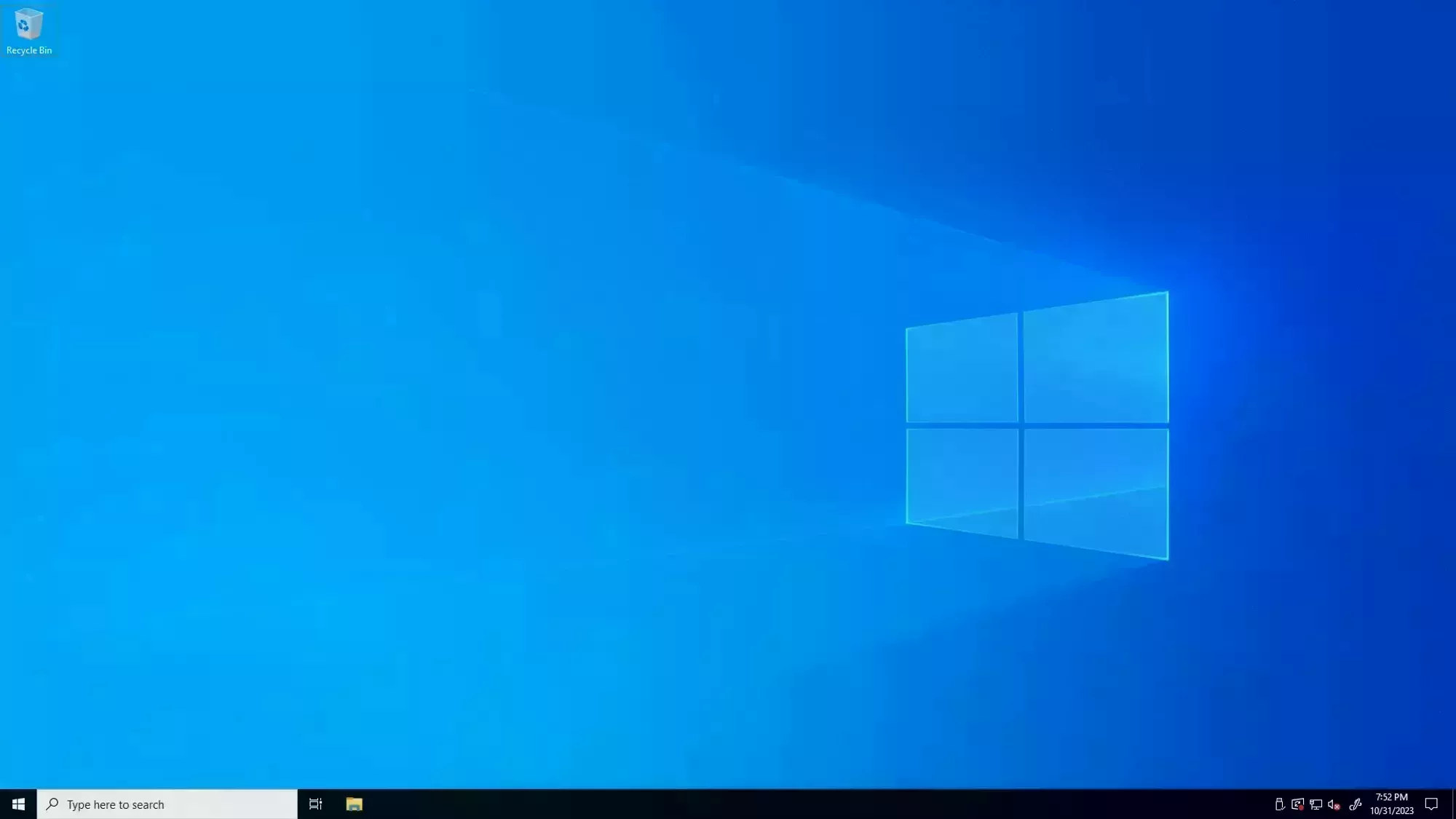
After closing the Windows Server Manager, you should see the default windows background and a Windows taskbar. There won’t be any icons on the desktop but most of the default Windows applications will be installed, like Microsoft Edge, so you’ll need to open them through the start menu.
Frequently Asked Questions
How do I tell if I’m connected to RDP or just looking at my PC?
Since the RDP session looks just like a standard Windows client, it may be difficult to tell the difference between your PC and the RDP session. There are a couple of ways you can easily tell though.
When you move your mouse to the top of an RDP session, a thin blue bar will appear with information about the session and the standard close/minimize/maximize window icons. You can “pin” this bar so that it’s always visible by clicking the push pin icon on the left, and drag the bar across the top of your monitor in order to see content that may be hidden behind it.
The styling of your Home PC and the RDP session are independent, so you can change the theme of one or the other so that applications and the taskbar make it more obvious which one you’re currently viewing.

How do I exit or minimize my RDP window?
The RDP session can be temporarily “minimized” by moving your mouse to the top of the screen to reveal the blue status bar. On the right side of the bar you’ll have the standard close/minimize/maximize window icons that appear on most Windows applications. Clicking the _ icon will minimize the RDP session to your PC’s taskbar as a normal application and you can re-open it by clicking on it in the taskbar like you would any other application.
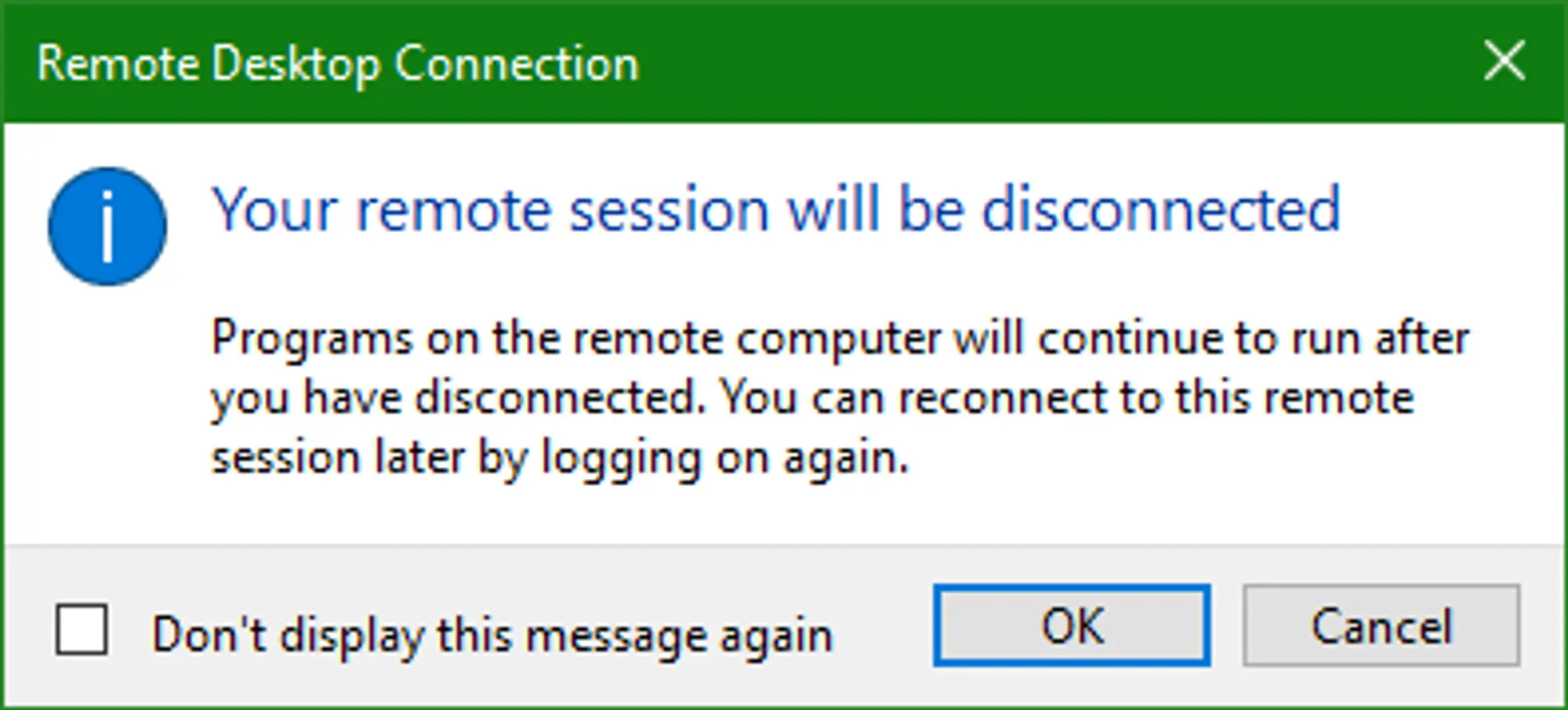
You can fully exit the RDP session by moving your mouse to the top of the RDP session’s screen in order to reveal the blue status bar. Then you can click the X icon on the right of the bar. You’ll be prompted with a message similar to the one shown in the image to the right, which you can disable with the checkbox. By clicking OK, you’ll exit the session but leave the programs you have running open on your VPS.
How do I save my connection details and settings?
Now that you’ve connected to your Windows VPS, you may want to save your connection details in a way that allows you to easily connect to the server again. Saving your connection details also allows you to add additional configuration options like display settings and file sharing.
The Windows Remote Desktop Application has the ability to open and save .rdp files with the connection details you’ve provided to it. These files can also be edited using the Windows Notepad. We’ll be covering how to save a connection and how to open the .rdp file with the Windows Notepad. If you want to see what all can be configured using the .rdp file, check out this Microsoft article.
Saving
To start with, .rdp files are opened by double clicking on them like you would any other shortcut. So when you save it, make sure it’s in a location that you would have easy access to, like your desktop or a folder/drive with relevant files.
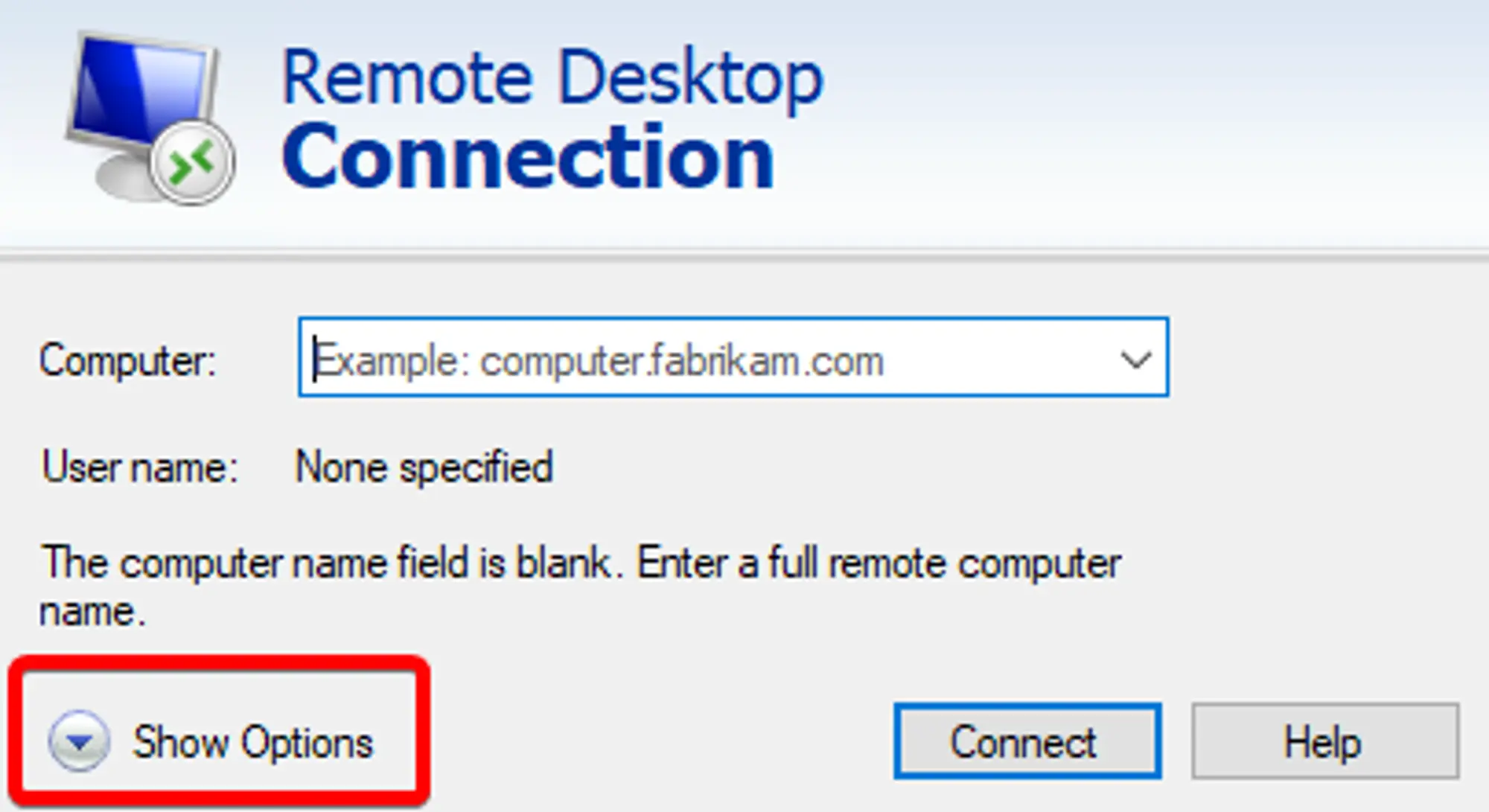
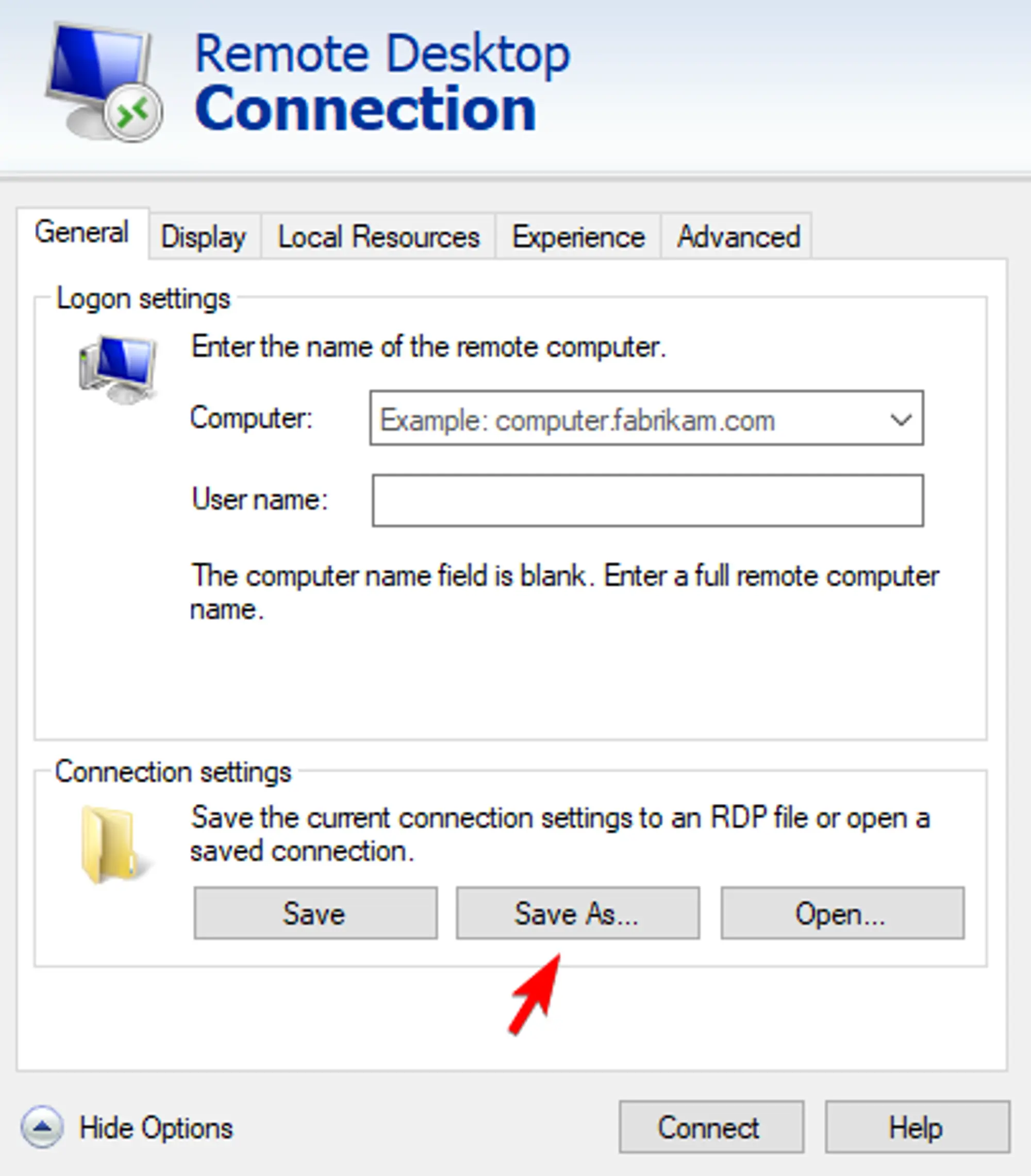
To save a connection, open the Windows Remote Desktop Connection application and click the Show Options drop down in the bottom right corner. This will alter the window to show a Connection settings box in a similar way to the one in the image to the right.
You’ll want to fill out the Computer field with the IP Address of your VM, just like when you originally connected, and then put the username you received in the VPS welcome email into the Username field.
With both of the fields filled out, you can click the Save As... button to save the .rdp file. As mentioned you’ll want to save it to a location you’ll have easy access to because the .rdp file will need to be double clicked in order to open the session.
Editing
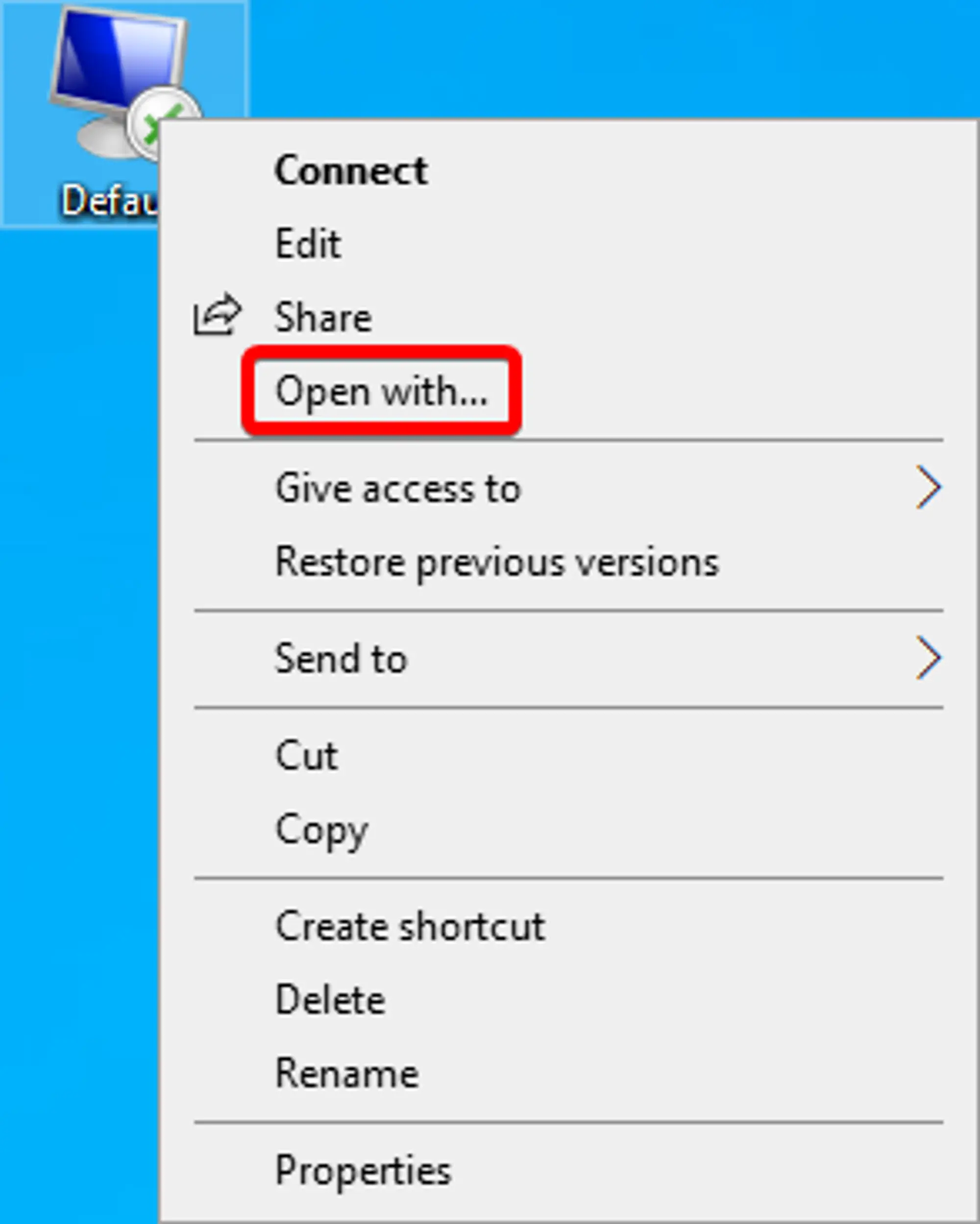
You can edit .rdp files with the Windows Notepad in order to add additional configuration parameters that are listed on this Microsoft article. By default, double clicking an .rdp file will open the connection, so you’ll need to right click on the file and click on the Open With option in the context menu. The window that opens should have the notepad program as an option. Selecting it will open the .rdp file in the Windows Notepad program, and saving the notepad with CTRL + S or the Menu bar under File -> Save will save your modifications to the .rdp file.
How do I use multiple monitors with RDP?
See the dedicated guide: Multiple Monitors with RDP. It covers both the Remote Desktop GUI method and editing an .rdp file to pick specific monitors.
More in Windows Servers
Enabling Remote Sound
How to enable and debug remote sound for your HostVenom Windows VPS over the Windows Remote Desktop client.
Error in Data Encryption
Fix the "error in data encryption" message you may see when connecting to a Windows server over RDP.
Getting Started with Your Windows Server
The first steps to take with your Windows Server at HostVenom.
Multiple Monitors with RDP
Configure your Windows Remote Desktop session to use two or more of your physical monitors instead of just one.
Frequently Asked Questions
They are in the Server Details section of the VPS Welcome Email that was sent to the address you signed up with.
No. RDP supports one connection per Windows user and each user gets their own desktop. The standard Windows license only supports 2 users, so more than that requires a license upgrade.
That warning is normal on your first connection to a Windows 2019/2022 server, because the server's certificate is not registered with a 3rd party. Click Yes to trust it. Only be concerned if it appears for a server you have connected to before.
Open Remote Desktop Connection, click the Show Options dropdown, fill in the Computer field with your server IP and the Username field with the username from your welcome email, then click Save As... to write an .rdp file you can double click later.