
If you can’t connect to your Windows server via RDP there’s generally only a few possible reasons. The list below will provide you with some things to check and ways to fix potential problems with your connection.
Is your server on?
Check that your server is running in the Billing Area or Server Control Panel. If your server is powered off you won’t be able to connect to it via RDP.
Is your firewall blocking it?
If you’ve reset your server’s firewall, or otherwise have blocked RDP from the firewall on your server, you can still connect to your server through NoVNC, which can be used as a backup method to fix your server’s firewall settings.
You’ll need to start by connecting to your Windows server via NoVNC, which should allow you to log in using your password.
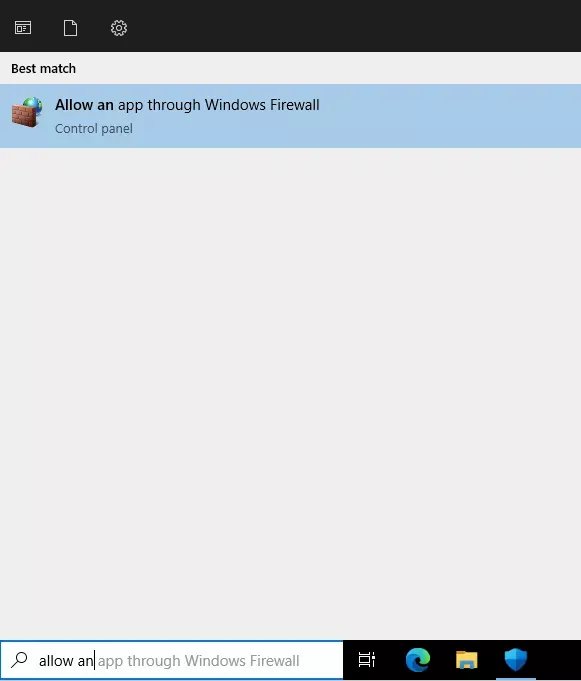
Now you need to open the Start Menu and search for the “Allow an app through the firewall” Control Panel section, which will allow you to change the applications allowed by the Windows Firewall.
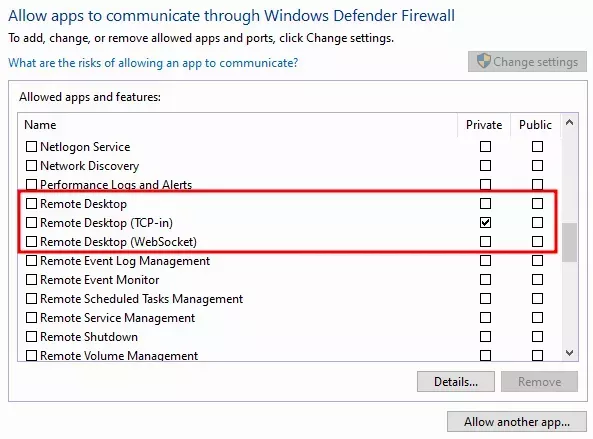
With the “Allowed apps” section of the control panel open, you’ll need to search for 3 entries that start with “Remote Desktop”. They may look similar to the ones shown to the right, with none or only one of them enabled.
Tick the 3 checkboxes for each of the 3 items, click the “OK” button to apply the changes, then test your RDP connection!

More in Windows Servers
Enabling Remote Sound
How to enable and debug remote sound for your HostVenom Windows VPS over the Windows Remote Desktop client.
Error in Data Encryption
Fix the "error in data encryption" message you may see when connecting to a Windows server over RDP.
Getting Started with Your Windows Server
The first steps to take with your Windows Server at HostVenom.
Multiple Monitors with RDP
Configure your Windows Remote Desktop session to use two or more of your physical monitors instead of just one.
Frequently Asked Questions
Sign in to the Billing Area at billing.hostvenom.com or the Server Control Panel at panel.hostvenom.com and check the power state. A powered off server cannot accept RDP connections.
No. A major benefit of a VPS over your home PC is that it stays online 24/7, so you can leave it running.
Connect to the server over NoVNC, which lets you log in with your password, then open the Start Menu and search for the Allow an app through the firewall Control Panel section.
In the Allowed apps section, look for the three entries that start with Remote Desktop: Remote Desktop, Remote Desktop (TCP-in), and Remote Desktop (WebSocket). Tick all three checkboxes, click OK, then test your connection.